Running and Debugging Tests
Running tests
To run tests, use the following command:
npx testplane
You can also run tests in gui mode. To do this, execute the command:
npx testplane gui
Running a specific test
Consider the following set of tests:
const assert = require("assert");

describe("tests", () => {
    it("Checking the display of the main page", async ({ browser }) => {
        await browser.url("https://testplane.io/ru/");
        const title = await browser.getTitle();
        assert.ok(title.includes("Testplane"));
    });

    it("Checking for the presence of a search field", async ({ browser }) => {
        await browser.url("https://testplane.io/ru/");
        const searchButton = await browser.$("button.DocSearch");
        const isExisting = await searchButton.isExisting();
        assert.strictEqual(isExisting, true);
    });
});
If you want to run just one of them, use --grep option:
testplane --grep "Checking for the presence of a search field"
You can pass the whole test name, some part of it or regex pattern to run only those tests whose names will match.
Running tests in specific browsers
By default, tests run in the browsers specified in the testplane.config.ts file.
browsers: ["chrome", "firefox"];
When you run the npx testplane command, tests will run in Google Chrome and Mozilla Firefox.
# Run in all browsers (default)
testplane
To run tests in a specific browser, use the command:
# Run only in Chrome
testplane --browser chrome
You can also specify a specific browser for use within the test body.
// tests/browser-specific.test.js
describe("Browser specific tests", () => {
    it("should work in all browsers", async ({ browser }) => {
        await browser.url("https://example.com");
    });

    // Skip the test in Safari
    testplane.skip.in("safari", "Feature not supported in Safari");
    it("should work only in Chrome and Firefox", async ({ browser }) => {
        await browser.url("https://example.com");
        // ... test body
    });

    // Run only in Chrome
    testplane.only.in("chrome");
    it("should work only in Chrome", async ({ browser }) => {
        await browser.url("https://example.com");
        // ... test body
    });
});
Running a test from a specific file
To run tests from a specific file, execute the command:
# Running a specific file
testplane ../testplane-tests/example.testplane.ts
Where ../testplane-tests/example.testplane.ts is the path to the test file.
User interface mode
In Testplane, you can work with tests in UI format using Testplane UI.
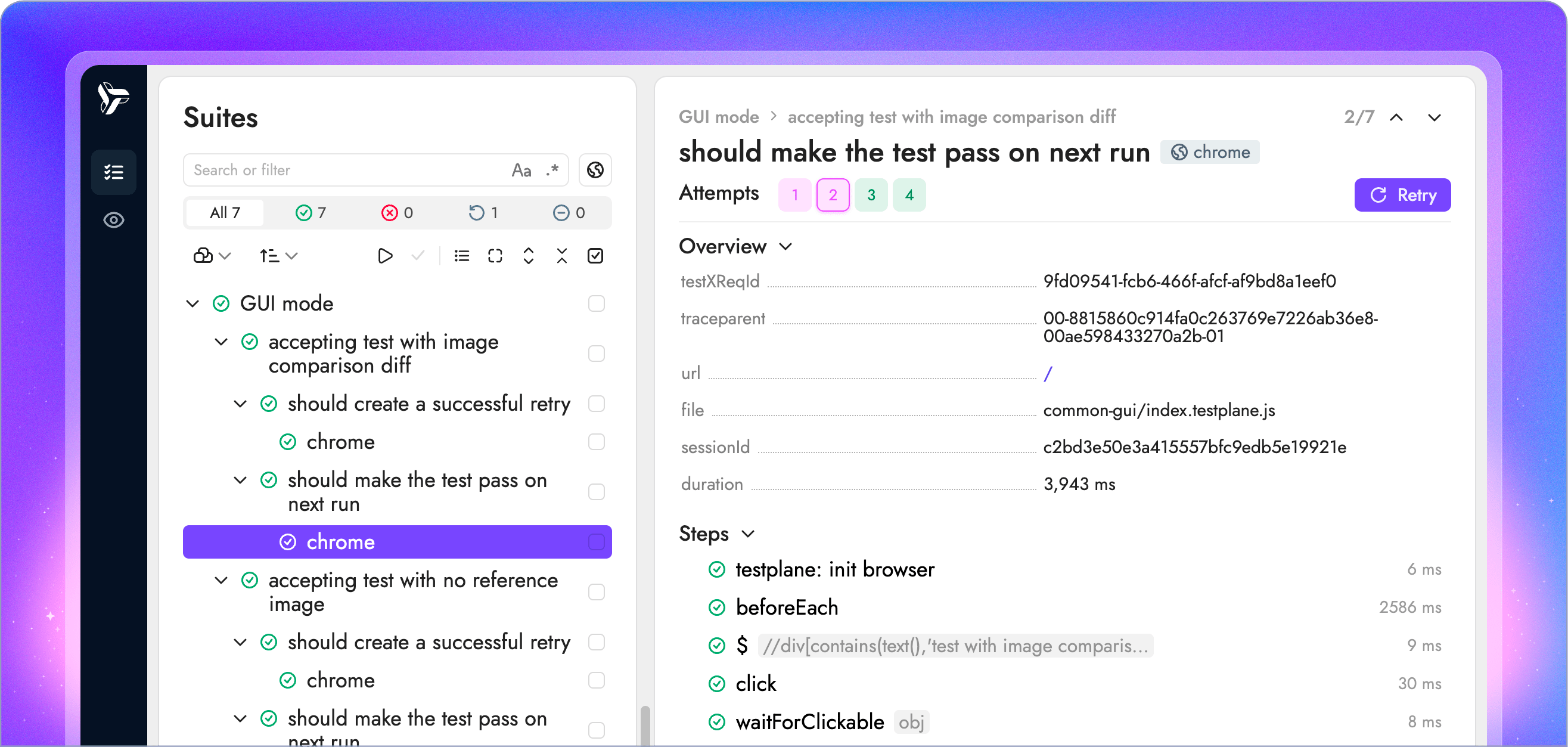
You can read about the installation and setup processes for Testplane UI in the UI. section.
Debugging
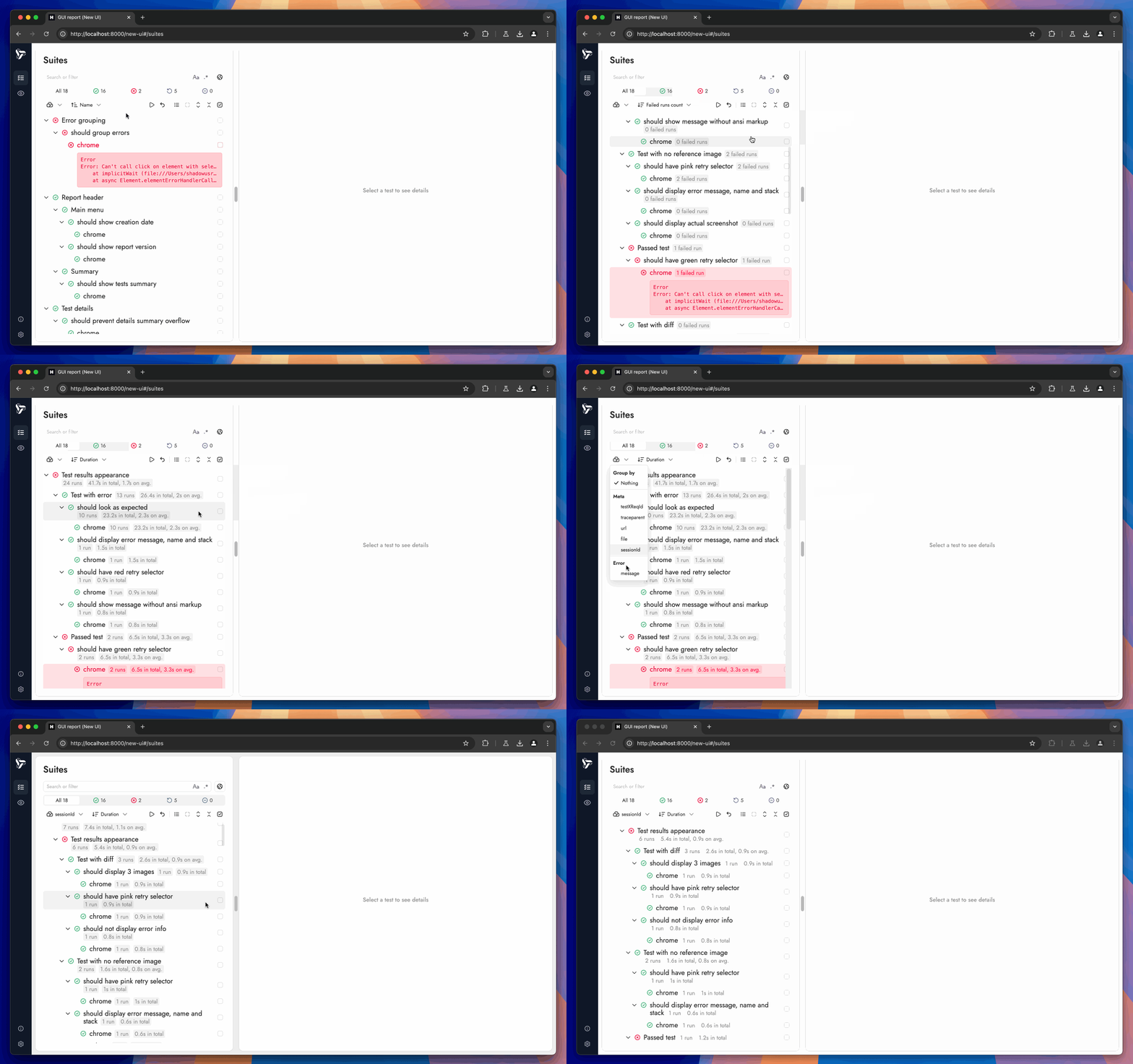
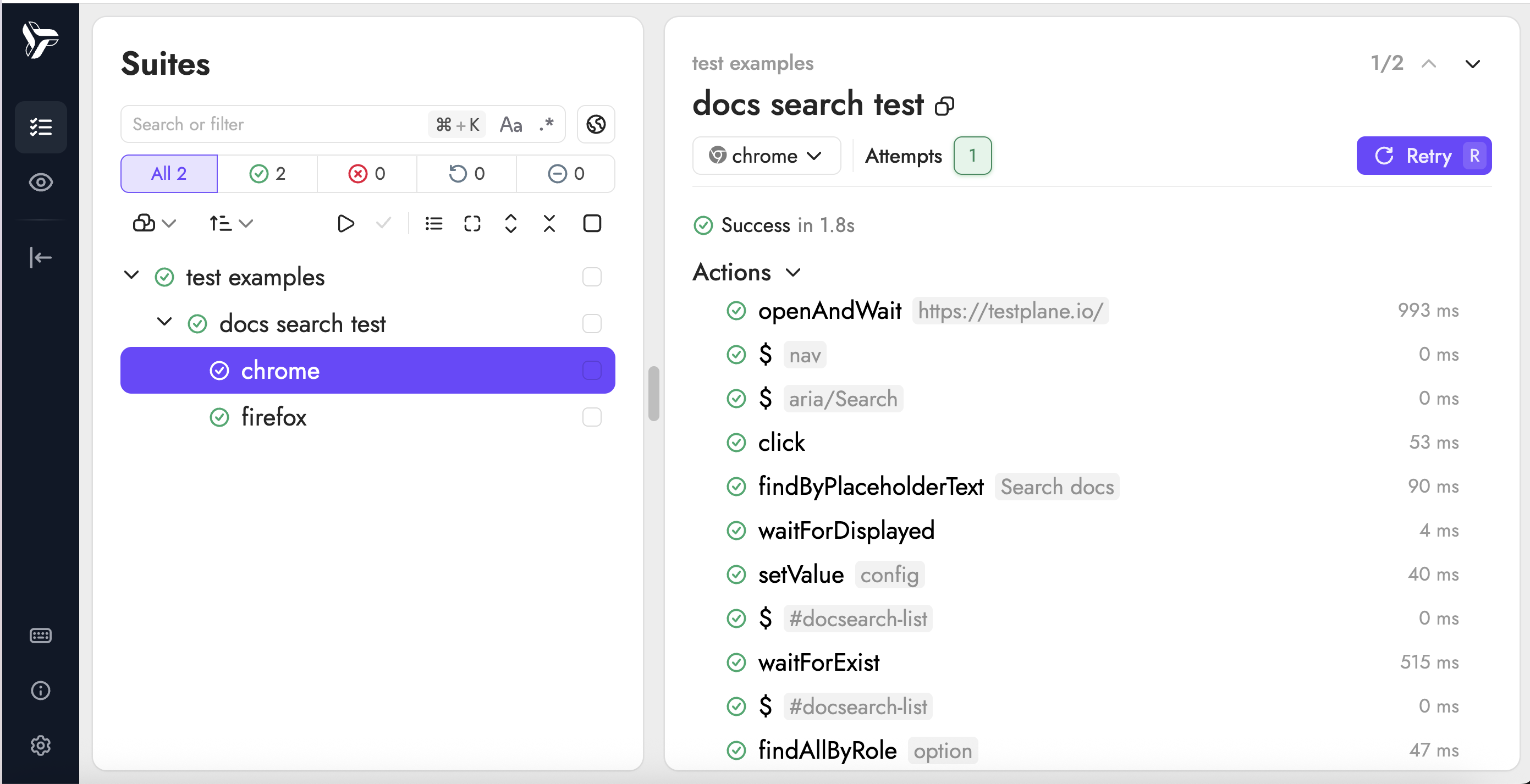
It’s very easy to track the test execution process if you run tests in gui mode. In this mode, the HTML reporter will show which tests were executed successfully, which ones have errors, and what kind of errors they are.
Browser.debug()
Testplane has a built‑in debugging tool — browser.debug.
it("debugging with a pause", async ({ browser }) => {
    // Open the page being tested
    await browser.url("/page");

    // browser.debug() stops test execution
    // and opens an interactive console (REPL — Read-Eval-Print Loop)
    await browser.debug();

    // After calling debug(), the test pauses
    // In the console, you can enter WebdriverIO commands in real time:

    // Examples of commands you can enter in REPL:
    // > await browser.$('.button').click()  - click the button
    // > await browser.getTitle()            - get the page title
    // > await browser.$$('.items')          - find all elements
    // > .exit                               - exit debug mode

    // This code will run only after exiting debug()
    await browser.$(".button").click();
});
Debugging via Testplane UI
The most convenient way to debug tests is using the UI mode, where you can observe test execution in real time.
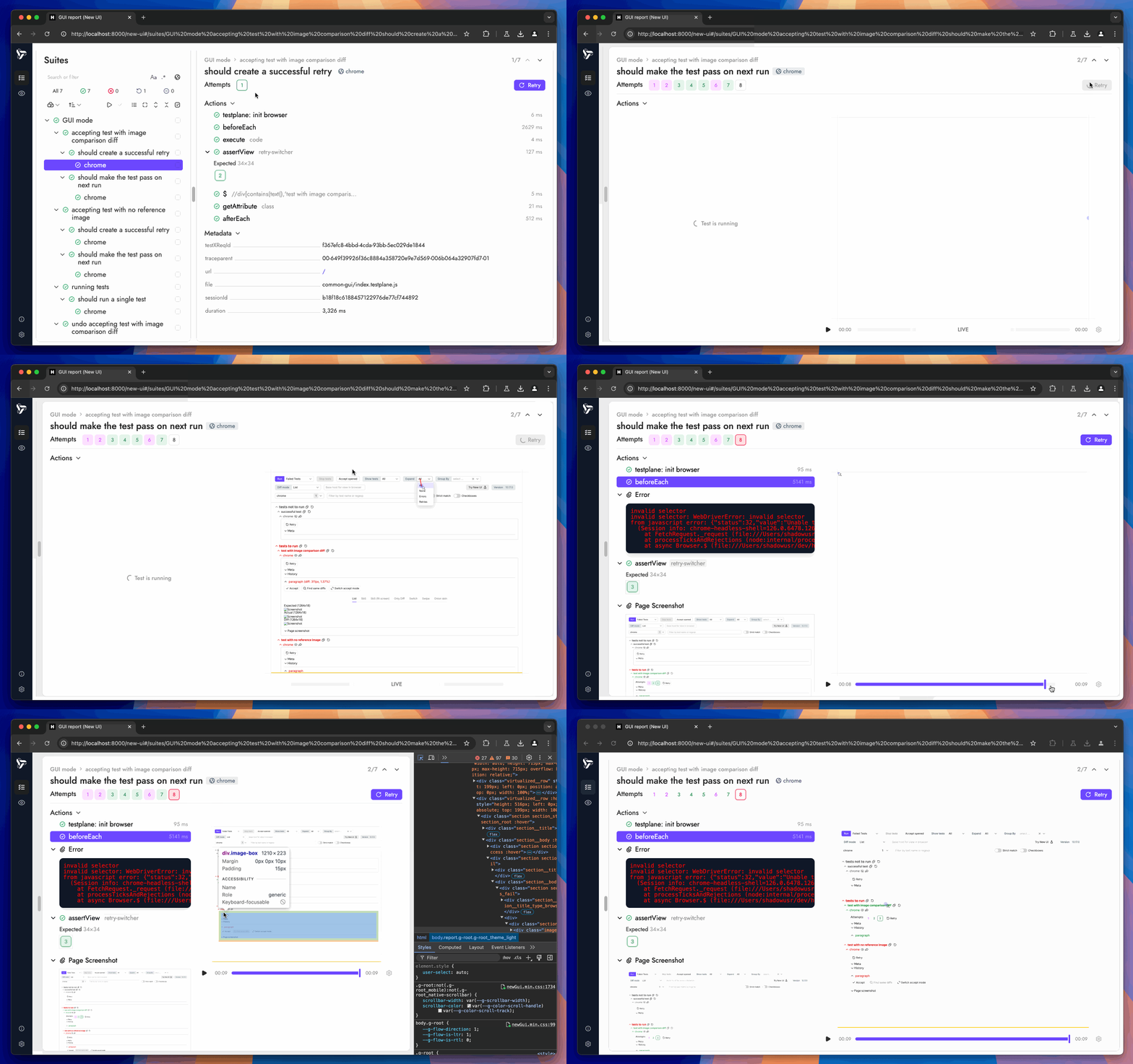
You can find unstable, slow tests, or other issues using the «sorting» and «grouping» options.