Running and Debugging
Running tests
To run tests, use the command:
npx testplane
You can also run tests in GUI mode with a visual interface:
npx testplane gui
In the GUI you can:
- Observe test execution in real time
- View screenshots, compare and update them
- Restart individual tests
- See detailed errors with command history
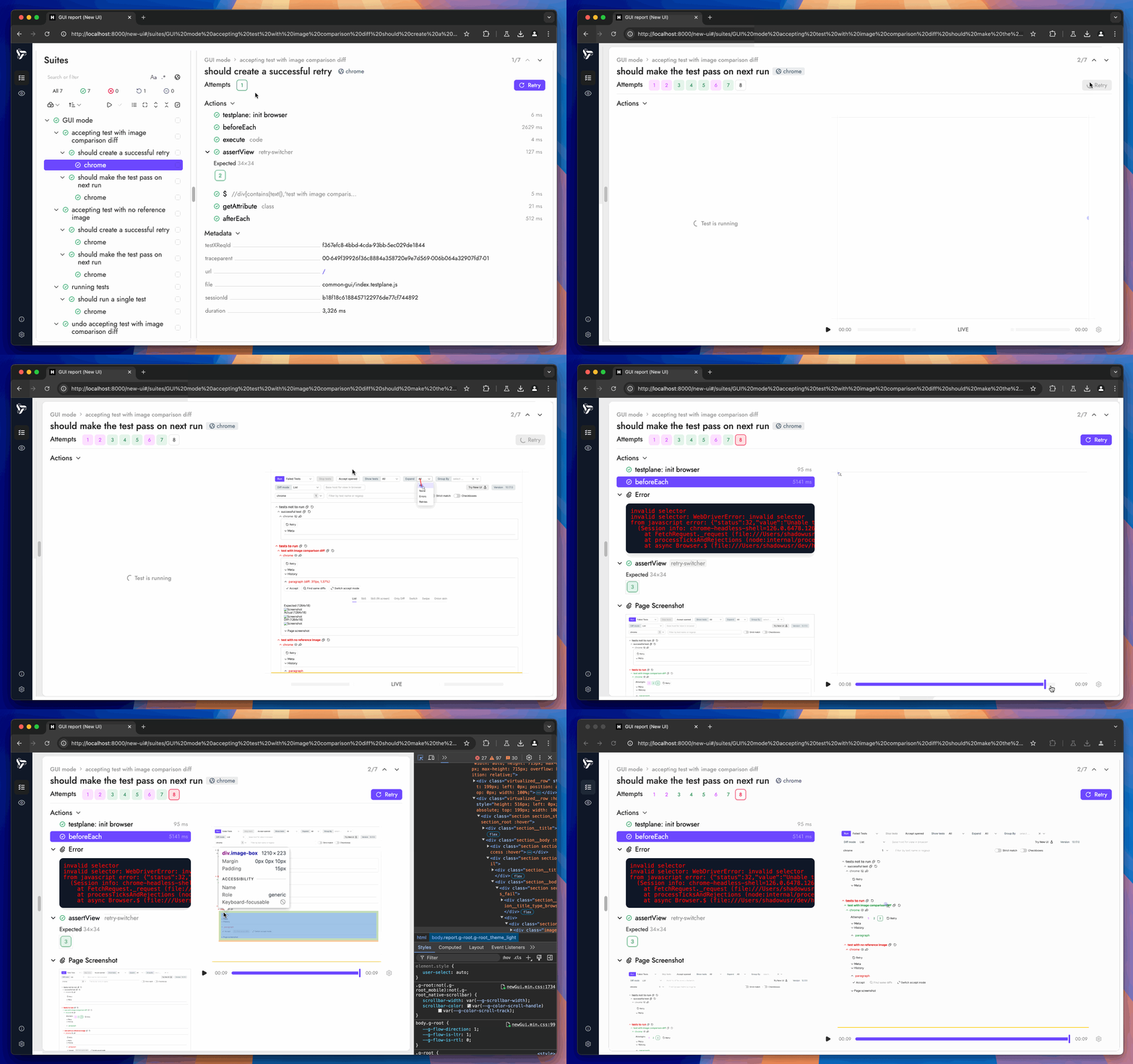
Learn more about the GUI in the HTML Reporter section.
Filtering tests at runtime
Suppose you have the following tests:
describe("Main page", () => {
    it("Check title", async ({ browser }) => {
        // ...
    });

    it("Check search field presence", async ({ browser }) => {
        // ...
    });
});
By name
The --grep option allows running tests by name match:
npx testplane --grep "Check search field presence"
Regular expressions are supported:
npx testplane --grep "search|title"
The --grep option filters tests by full name (including all levels of describe and it). The provided string is interpreted as a regular expression.
By tags
Tags help group tests, for example, to separate fast smoke tests from full ones:
describe("Authorization", { tag: "auth" }, () => {
    it("Successful login", { tag: "smoke" }, async ({ browser }) => {
        // ...
    });
});
Run only smoke tests:
npx testplane --tag "smoke"         # only smoke tests
npx testplane --tag "auth&smoke"    # tests with both tags
By browser
By default, tests run in all browsers from the config. To run in only one:
npx testplane --browser chrome
The --browser option can be specified multiple times to run in several browsers:
npx testplane -b chrome -b firefox
You can also specify a specific browser in the test code:
describe("Running tests in different browsers", () => {
    it("Works in all browsers", async ({ browser }) => {
        await browser.url("https://testplane.io/");
    });

    // Skip test in Safari
    testplane.skip.in("safari", "Feature not supported in Safari");
    it("Works only in Chrome and Firefox", async ({ browser }) => {
        await browser.url("https://testplane.io/");
        // ...
    });

    // Run only in Chrome
    testplane.only.in("chrome");
    it("Works only in Chrome", async ({ browser }) => {
        await browser.url("https://testplane.io/");
        // ...
    });
});
By file
To run tests from a specific file:
npx testplane tests/login.testplane.ts
Quick run of a single test
During development, it's convenient to use .only():
it.only("Check search field", async ({ browser }) => {
    // Only this test will run
});
Remove .only() before committing, otherwise only one test will run in CI!
Debugging
GUI mode
The easiest way to debug is to run tests in GUI:
npx testplane gui
In the GUI you will see test execution in real time, screenshots, and errors. You can restart individual tests and observe their execution.
Local browser with DevTools
For debugging, you can open a visible browser window with DevTools:
px testplane --local --devtools --headless false --grep "Test name"
What will happen:
- A visible browser window will open
- Chrome DevTools will automatically open
- You can observe the test execution
REPL mode
REPL (Read-Eval-Print Loop) is an interactive console for executing browser commands during a test. There are several ways to enter REPL:
-
Command line options:
--repl— enables REPL mode. To enter the console, callbrowser.switchToRepl()in the test code--repl-before-test— automatically opens REPL before test execution--repl-on-fail— automatically opens REPL when a test fails
# Open REPL on test failure
npx testplane --repl-on-fail --grep "Test name" --browser chrome

# Open REPL before test execution
npx testplane --repl-before-test --grep "Test name" --browser chrome -
browser.switchToRepl()command in code:it("Debugging", async ({ browser }) => {
await browser.url("/page");
await browser.switchToRepl(); // Test will stop here
// In the console you can execute commands:
// > await browser.$(".button").click()
// > await browser.getTitle()
// > Cmd+D or Ctrl+D — exit REPL and continue the test
await browser.$(".button").click();
});
Keeping the browser after test
By default, the browser closes immediately after the test. To examine the final page state:
npx testplane --keep-browser --grep "Test name"
npx testplane --keep-browser-on-fail  # only on failure
Useful for checking DOM, cookies, or localStorage after test execution, and also in combination with MCP to allow an AI agent to connect to an already prepared browser.
Useful commands
# Run all tests
npx testplane

# Run in GUI with visual interface
npx testplane gui

# Run a specific test
npx testplane --grep "test name"

# Run only in one browser
npx testplane --browser chrome

# Debug with Chrome DevTools Protocol
npx testplane --devtools --grep "test name"

# Interactive debugging on failure
npx testplane --repl-on-fail --grep "test name"